How to Add an Editable Notion Widget to Your Android Home Screen
Add a Notion widget to your Android home screen with NotiZen Widget. View tasks, use Custom Views, edit properties, and choose light, dark, or system mode.
Posted by
 Gustav Caves
Related reading
Why connecting Notion can feel confusing — and how NotiZen makes setup easier
Connecting Notion can be confusing when databases do not appear after setup. Learn how Notion page permissions work and how NotiZen Widget makes the setup flow clearer.
Why your Notion databases may not appear in an Android widget
Learn why Notion databases may not appear after connecting Notion, how page permissions work, and how NotiZen Widget now makes setup clearer.
How to manage multiple Notion workspaces on your Android home screen
Learn how NotiZen helps Android users manage multiple Notion workspaces, update shared pages, choose the right database for widgets, and remove local workspace connections safely.
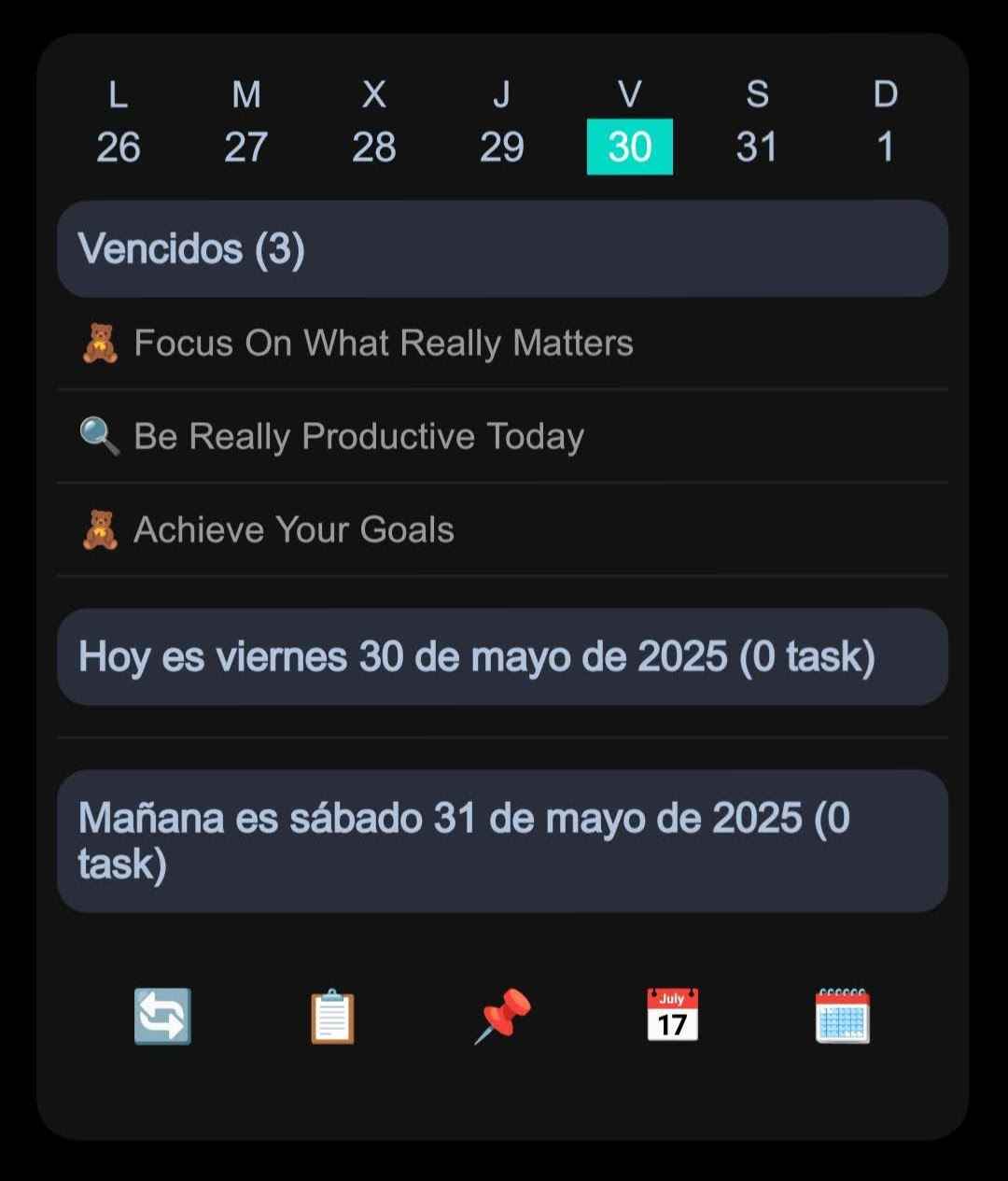
Introduction
Notion is powerful because it can hold tasks, projects, reading lists, content calendars, habits, and almost any database workflow you want to build. On Android, the friction usually appears at the moment you only need a quick check. Opening the full Notion app, finding the right page, waiting for the database, and scanning the right view can feel like too much work for a simple task review.
That is why many people search for a Notion widget Android workflow: they want important Notion information visible directly on the home screen. A good widget should help you see what matters before you decide whether opening Notion is worth it.
NotiZen Widget is built for this exact workflow. It turns selected Notion databases and Custom Views into an Android home screen experience that is useful for quick review, focused planning, and supported property updates without pretending to replace Notion itself.
If you are looking for a Notion database widget Android setup, the practical question is not only whether a widget can show rows. It is whether the widget can show the right rows, the right properties, and the right level of interaction for the way you actually use Notion.
Why use a Notion widget on Android?
The main reason to use a Notion home screen widget is visibility. If your task list only lives inside an app, it is easy to forget until you actively go looking for it. A widget keeps the next useful slice of your system closer to the place you already check throughout the day.
- See tasks without opening Notion every time.
- Reduce the friction between remembering something and acting on it.
- Keep projects visible instead of buried inside nested pages.
- Use your Android home screen as a lightweight productivity dashboard.
- Open Notion only when you need the full page, comments, files, or deeper context.
This makes a Notion Android widget especially useful for recurring check-ins: morning planning, end-of-day review, quick status updates, or checking what belongs to a current project.
What makes an editable Notion widget different?
A read-only widget is helpful when you only need to glance at information. An editable Notion widget goes a step further by letting you update supported fields directly from the widget when a small change is enough. That matters because many task workflows are made of tiny updates: mark done, move a status, adjust a date, or choose a different select value.
NotiZen Widget supports selected property edits, with 5 successful widget actions per day in Basic and no daily widget action limit in Pro. Current examples include checkbox, date, select, and status properties. This is intentionally narrower than full Notion editing. Page body content, files, formulas, rollups, relations, and complex database changes still belong in Notion.
In practice, that means a Notion widget with editable properties is best for lightweight workflow movement, not for rewriting a full page. You can keep the widget focused, make the quick update, and open Notion only when the task needs more detail.
Use Custom Views for focused Notion workflows
A Notion database can hold a lot more than a home screen should show. Notion Custom Views in NotiZen Widget let you shape a smaller widget view from the database you already use. Instead of trying to display every row and every property, you choose the focused slice that belongs on the home screen.
- Today tasks: show the work that needs attention now.
- Project tasks: keep a launch, client project, or personal project visible.
- Reading list: track books, articles, or study material you want to return to.
- Content calendar: review drafts, publishing dates, and production status.
- Habit tracker: keep repeatable actions close to the place you check most often.
Basic includes up to 3 saved Custom Views, filters, sorting and a basic item-count metric. Pro removes usage limits and unlocks duplicate Custom Views, compact mode, advanced metrics and advanced visibility controls. The goal is not to force one template on every user; it is to let each widget represent the useful part of your Notion system.
Customize each widget with light, dark, or system mode
Appearance matters on a home screen. You may keep your phone in light mode but want a darker widget for contrast, or use a dark phone theme while keeping one widget brighter for readability. A light and dark mode widget is not just cosmetic when you glance at it many times per day.
NotiZen Widget supports light, dark, and follow-system appearance options in widget settings. Because settings belong to the widget, a Notion Android widget can be tuned for the home screen layout where it lives instead of being forced into one visual choice for every workflow.
This is useful for Android home screen productivity because different widgets can serve different purposes: a compact task list near your calendar, a darker project tracker on a busy wallpaper, or a system-mode database view that follows the rest of your phone.
Show the properties that matter
Not every Notion property deserves space on a widget. A full database might include internal notes, formulas, rollups, tags, relation links, publish details, and admin fields. On the home screen, too many properties make the widget harder to scan.
NotiZen Widget lets you control which properties are visible so each widget stays focused. Common examples include status, checkbox, select, date, and relation properties. Status and checkbox fields are useful for task flow. Select fields can show priority, area, channel, or category. Date fields help with planning and review.
Relation properties should be treated as visible context, not as editable fields. A relation may help you understand which project, client, or parent item a row belongs to. When there are no related pages, an empty state such as "No related pages" can be more helpful than hiding the property and making the row feel incomplete.
Example workflows for a Notion task widget on Android
A Notion task widget Android setup works best when it has a clear job. Start with one workflow, then add more only when the first widget is genuinely useful.
- Daily task list: show today's tasks, statuses, checkboxes, and due dates.
- Personal project tracker: keep active tasks from one project visible until it ships.
- Content planning widget: show upcoming posts, select fields for channel, and status for draft, editing, or ready.
- Study or reading tracker: keep assigned chapters, articles, or learning tasks visible.
- Family and admin tasks: track errands, reminders, documents, and small chores that are easy to forget.
These workflows do not require a perfect Notion setup. They require a database with useful rows, a focused view, and the discipline to show only the properties that help you act. If you mainly need a Notion widget for tasks, start with the smallest useful view and add complexity only after it earns space on your home screen.
How to get started with NotiZen Widget
- Install NotiZen Widget from Google Play.
- Connect your Notion workspace from the Android app. The Notion connection docs explain the basic flow.
- In Notion, select the database you want to use, or a page that contains it. If no database appears, check sharing Notion pages and databases.
- Select a database or Custom View for the widget.
- Choose the visible properties that make the widget easy to scan.
- Pick light, dark, or system appearance for the widget.
- Add the widget to your Android home screen using the widget setup guide.
The main documentation is the best place to review setup, empty-widget checks, and feature limits. For supported property editing, see edit properties from the widget.
Basic and Pro access
Basic is free with no time limit and gives you the core NotiZen workflow: Inbox, Today, Upcoming, unlimited actions inside the app, up to 3 Notion data sources, up to 3 saved Custom Views, 1 active widget and 5 successful widget actions per day.
Pro is for workflows that grow. It removes the Basic limits on widgets, data sources, saved Custom Views and widget actions, and adds view duplication, compact mode, advanced metrics and advanced visibility controls. Pro billing is managed through Google Play, and there is currently no Pro free trial.
Prices and billing details are managed through Google Play and may change over time, so this article does not hardcode pricing. Check the current Pro pricing page when you want the latest details.
FAQ
Can I add a Notion widget to Android?
Yes. Install the app, connect Notion, select the database you want to use or a page that contains it, then choose a database or Custom View inside NotiZen.
Can I edit Notion properties from an Android widget?
Yes, for supported property types. Basic includes 5 successful widget actions per day; Pro removes that limit. NotiZen Widget supports quick edits for properties such as checkbox, date, select, and status. Other properties may be visible but read-only.
Can I use dark mode for a Notion widget?
Yes. NotiZen Widget supports light, dark, and system appearance options so a widget can stay readable on your Android home screen.
Can I show relation properties in a Notion widget?
Relation properties can be used as visible context when your widget view includes them, but they should be treated as read-only rather than editable from the widget.
Is NotiZen Widget free?
Basic is free with no time limit and gives you the core NotiZen workflow: Inbox, Today, Upcoming, unlimited actions inside the app, up to 3 Notion data sources, up to 3 saved Custom Views, 1 active widget and 5 successful widget actions per day.
Conclusion
A Notion widget Android setup works when it reduces friction without trying to replace the full Notion app. NotiZen Widget helps turn Notion into a practical Android home screen productivity layer by keeping tasks, Custom Views, visible properties, supported edits, and readable appearance settings closer to where you actually work.
Try NotiZen Widget with the free Basic plan on Google Play if you want your Notion tasks, views, and editable properties closer to your home screen. For setup details, start with the NotiZen Widget docs.