Why connecting Notion can feel confusing — and how NotiZen makes setup easier
Connecting Notion can be confusing when databases do not appear after setup. Learn how Notion page permissions work and how NotiZen Widget makes the setup flow clearer.
Posted by
 Gustav Caves
Related reading
Why your Notion databases may not appear in an Android widget
Learn why Notion databases may not appear after connecting Notion, how page permissions work, and how NotiZen Widget now makes setup clearer.
How to manage multiple Notion workspaces on your Android home screen
Learn how NotiZen helps Android users manage multiple Notion workspaces, update shared pages, choose the right database for widgets, and remove local workspace connections safely.
How to organize multiple Notion views on your Android home screen
Learn how to organize multiple Notion views on your Android home screen with NotiZen Widget, including Today, Overdue, Work, Personal and project-focused Custom Views.
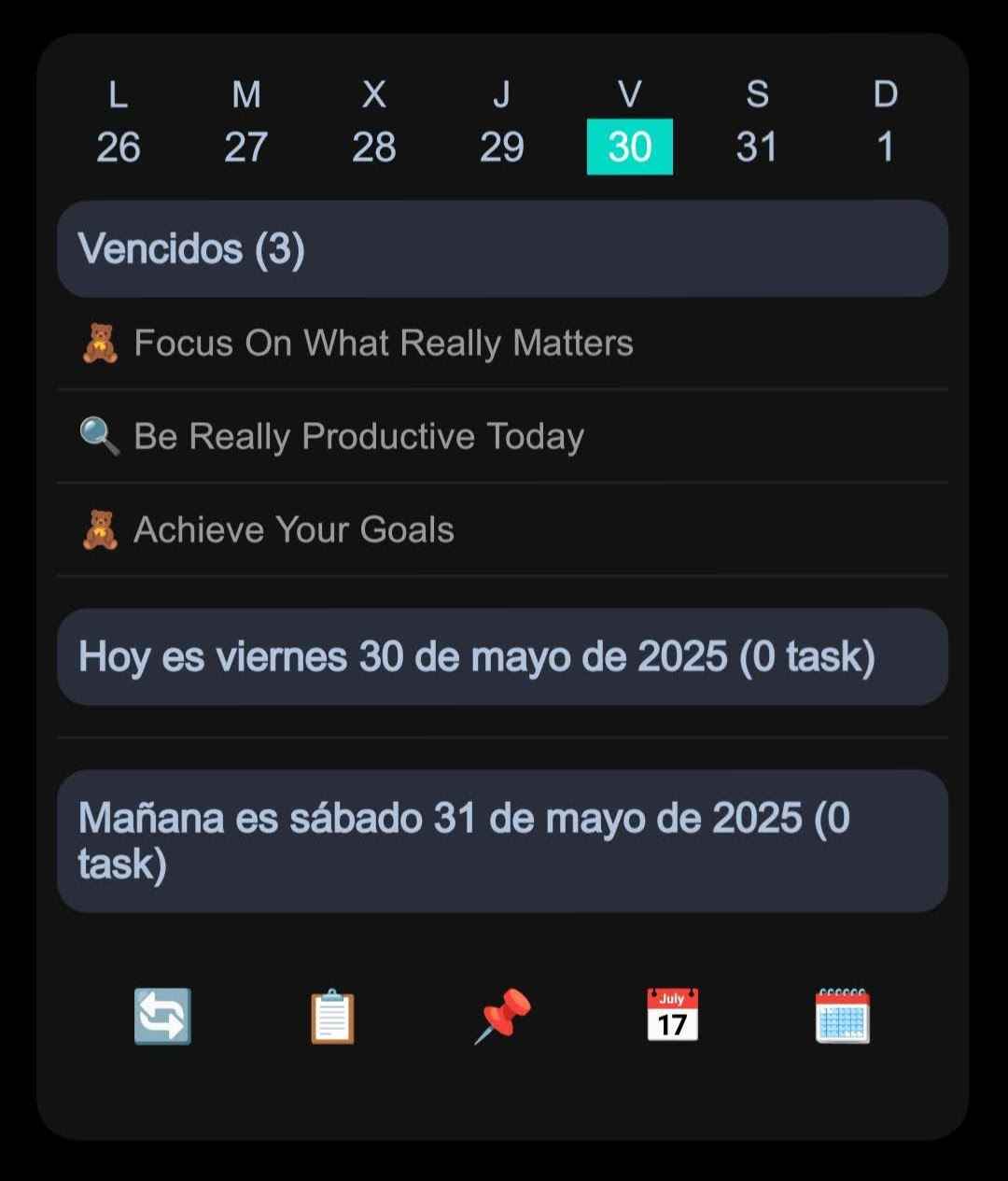
Connecting Notion to a Notion Android widget sounds like it should be simple: connect your account, choose a database, and add the widget to your home screen.
In practice, there is one setup step that often creates friction. Notion asks you to select which content the integration can use. If that step is missed, the connection may finish, but your databases may not appear in NotiZen Widget.
Notion's permission model is powerful, but it can be confusing during setup. We improved the flow to make this step easier to understand before you leave NotiZen and open Notion.
The hidden friction in Notion setup
Notion does not automatically give an integration access to every database in your workspace. Instead, Notion asks you to choose the pages and databases that integration can access.
That is useful for privacy because access stays explicit. The confusing part is that a user can complete the connection step without selecting the database they want or a page that contains it.
When no relevant content is shared, NotiZen may be connected to Notion but still unable to find databases. That can make it feel like something is broken, even though the missing piece is usually Notion integration permissions.
Why "connected" does not always mean "ready"
There are three separate steps in this flow, and they can be easy to mix up:
- Connect your Notion account so Notion can authorize the integration.
- Select a database or a page that contains it so NotiZen can access the right database.
- Select a database inside NotiZen for the widget you want to create.
If step one succeeds but step two is skipped, Notion can look connected while Notion databases are not showing in the picker. For more background, see the Notion setup docs and the guide to share Notion pages and databases.
A stable first-connection path
A useful setup guide does not need to depend on the exact labels in Notion's interface. Focus on the result:
- Continue from NotiZen to the Notion connection.
- Find the database you want to use, or a page that contains it.
- Select the relevant content and confirm access.
- Return to NotiZen and choose the database for your widget.
For the simplest setup, select the database you want to use directly. If it lives inside a page, you can instead select that page to grant access to the content inside it when Notion permits it. This is not a limit: advanced users can share multiple databases during the same connection. Basic allows up to 3 distinct data sources in use across saved views and enabled task sources. Pro removes that usage limit; sharing access alone does not consume a source slot.
Progressive access for more databases
More databases can be added later with "Update shared pages". When you update access, keep any existing content you still need available, select the new database or a page that contains it, and confirm access.
After you return, NotiZen checks which databases are actually accessible and refreshes what it can show.
If several databases are inside one parent page and you intentionally want to share that group, access to the parent page can be useful when Notion permits it. This is an advanced option, not the main onboarding path.
What changed in NotiZen Widget
We improved the flow to make Notion shared pages easier to understand before users open Notion. This does not remove Notion's permission step, but it makes it clearer what users need to select before returning to NotiZen.
- A short textual guide appears before opening Notion.
- The guide recommends direct database selection for the simplest setup.
- The guide explains that a containing page can also provide access.
- The guide avoids screenshots and exact external interface labels.
- The guide now appears before reconnect, add workspace, and update shared pages flows.
- Recovery is clearer when shared pages are missing.
- The selected connection is preserved more reliably when updating shared pages.
You can also read the related product notes in the NotiZen changelog.
What to do if your databases still do not appear
If your database picker is still empty after connecting Notion, use this checklist:
- Open "Update shared pages".
- Find the database you want to use in Notion, or a page that contains it.
- Select the relevant content and confirm access.
- Return to NotiZen and refresh or retry.
If the database is nested inside a parent page, check that the relevant parent content is also accessible.
The troubleshooting guide has a focused checklist for this exact issue.
Why this matters for Android widgets
A home screen widget should feel fast and direct. The value is seeing the right Notion database on your Android home screen without opening a full app every time.
If a user gets lost before creating the first widget, they never reach that value. Clearer Notion setup permissions help the path from database to widget feel less surprising and more reliable.
See more of what NotiZen can do on the features page, or start from the NotiZen Widget home page.
FAQ
Why do Notion databases not show after setup?
The most common reason is that Notion was connected, but the needed pages or databases were not shared with the integration.
What should I choose during the Notion connection?
Select the database you want to use, or a page that contains it, confirm access, and return to NotiZen.
Can I share multiple databases during the first connection?
Yes. Starting with one is only the simplest first-widget recommendation, not a technical limit.
Conclusion
NotiZen Widget cannot change Notion's permission model, but it can make the setup flow easier to understand. This update is part of making the path from Notion database to Android home screen widget clearer and more reliable.
Try NotiZen Widget for Android and turn your Notion databases into home screen widgets.