How to manage multiple Notion workspaces on your Android home screen
Learn how NotiZen helps Android users manage multiple Notion workspaces, update shared pages, choose the right database for widgets, and remove local workspace connections safely.
Posted by
 Gustav Caves
Related reading
Why connecting Notion can feel confusing — and how NotiZen makes setup easier
Connecting Notion can be confusing when databases do not appear after setup. Learn how Notion page permissions work and how NotiZen Widget makes the setup flow clearer.
Why your Notion databases may not appear in an Android widget
Learn why Notion databases may not appear after connecting Notion, how page permissions work, and how NotiZen Widget now makes setup clearer.
How to organize multiple Notion views on your Android home screen
Learn how to organize multiple Notion views on your Android home screen with NotiZen Widget, including Today, Overdue, Work, Personal and project-focused Custom Views.
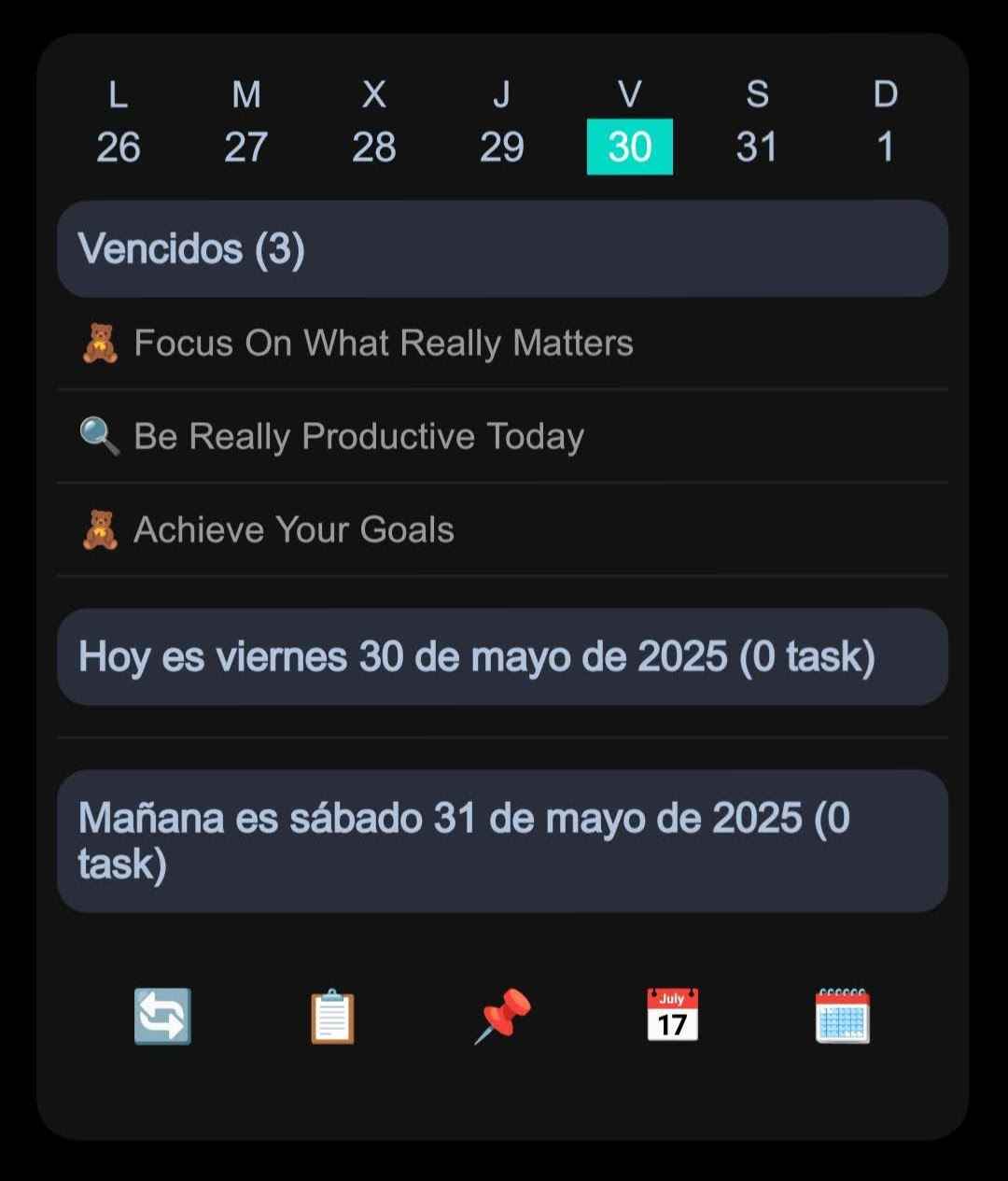
Using Notion on Android is already useful, but things can get confusing when you work with more than one Notion workspace.
Maybe you have one workspace for personal tasks, another for work, and another for projects. Then you try to add a Notion database to your home screen widget, and suddenly every source looks almost the same.
For anyone using a Notion Android widget as a Notion home screen widget, the goal is a clear Notion database widget experience, not another place to guess which workspace is which.
That is the problem this NotiZen update is designed to solve.
The problem with multiple Notion workspaces
When an app connects to Notion, it does not automatically get access to everything in your account. Notion asks you to choose which pages and databases the app can access.
That is good for privacy, but it can also create confusion.
For example:
- You connect one workspace.
- Later, you connect another workspace.
- Some databases appear, but others seem missing.
- Two workspaces may look similar if the app cannot display the real workspace name.
- A widget or custom view may stop loading if its original Notion connection is removed.
For a home screen widget, this matters a lot. A widget should feel quick and clear, not like a guessing game.
Workspace names now matter more
NotiZen now shows the real Notion workspace name when it is available.
This makes it easier to understand which workspace you are choosing when selecting a database for:
- a main widget source;
- a custom view;
- a task list;
- a notes database;
- a filtered Notion view on your Android home screen.
If Notion does not provide the workspace name, NotiZen still makes unnamed workspaces easier to distinguish instead of showing identical generic labels.
Small detail, big difference.
Updating shared pages
Sometimes a Notion database does not appear because neither the database nor a page that contains it was included when the workspace was connected.
That does not always mean something is broken. It may simply mean the relevant content was not shared with the NotiZen integration.
This update adds a clearer Update shared pages action.
Use it when:
- a database is missing;
- you created a new Notion page or database after connecting NotiZen;
- you want to give NotiZen access to more databases;
- you want to update which Notion databases are available to the app.
One important detail: when updating shared access, keep any existing content you still need available and select the new database or a page that contains it. After you return, NotiZen checks which databases are actually accessible.
A parent page can make contained databases accessible when Notion permits it. NotiZen still asks you to choose a database as the widget source after you return.
Removing a workspace from NotiZen
NotiZen now lets you remove a Notion workspace connection locally from the app.
The wording is important: this is "Remove from NotiZen", not "delete workspace".
Removing a workspace from NotiZen:
- removes the local connection from the app/device;
- removes the local connection data stored by NotiZen;
- does not delete anything from Notion;
- does not delete your Notion pages;
- does not delete your Notion databases;
- does not delete your Notion workspace;
- does not revoke the integration inside Notion.
If you want to fully revoke access, you should also remove the integration from Notion's own connected apps or integration settings.
What happens to existing widgets and custom views?
If a widget or custom view was using a workspace that you remove from NotiZen, NotiZen keeps that widget or view configuration.
That is intentional.
Instead of deleting your setup automatically, NotiZen lets the existing missing-connection flow handle it. You can then choose another Notion source when needed.
This is safer than silently deleting custom views or widget settings.
A clearer database picker
The database picker has also been improved.
When you choose a Notion database for a widget, the wording now refers to the widget.
When you choose a Notion database for a custom view, the wording now refers to the view.
That sounds small, but it avoids confusion when one widget contains multiple custom views, each with its own source.
Practical checklist
If a Notion database is missing in NotiZen:
- Check that you are in the correct Notion workspace.
- Use "Update shared pages".
- Keep existing content you still need available.
- Select the missing database, or a page that contains it.
- Confirm access and return to NotiZen.
- Choose the database again in NotiZen.
- If a workspace is no longer needed, use "Remove from NotiZen".
Why this update matters
NotiZen is built for people who want their Notion tasks, notes, and databases visible directly on the Android home screen.
As soon as you use more than one workspace, source selection becomes more important.
This update makes that flow clearer, safer, and easier to understand.
You can try NotiZen Widget here.
Read the latest product updates here.
If you are organizing several views inside one widget, you may also like the guide about organizing multiple Notion views on your Android home screen.
For a broader Notion widget Android overview, read Does Notion Have an Android Widget?