Plan your Notion agenda with AI using NotiZen JSON export
Learn how NotiZen Widget lets Android users export selected Notion Custom Views and cached calendar events as JSON for ChatGPT, MCP workflows, and weekly planning.
Posted by
 Gustav Caves
Related reading
Get Notion reminders on your Android home screen
Learn how NotiZen Widget turns Notion date properties like Reminder or Due Date into local Android notifications from your Custom Views.
Fixing Notion Native Icons in an Android Widget
A behind-the-scenes look at how NotiZen Widget learned to render Notion native icons, remote icons, SVGs, and color mappings correctly on the Android home screen.
Faster hide picker: less friction, more focus
A small UI upgrade that makes hiding/postponing reminders faster by replacing the old two-column menu with a wheel picker.
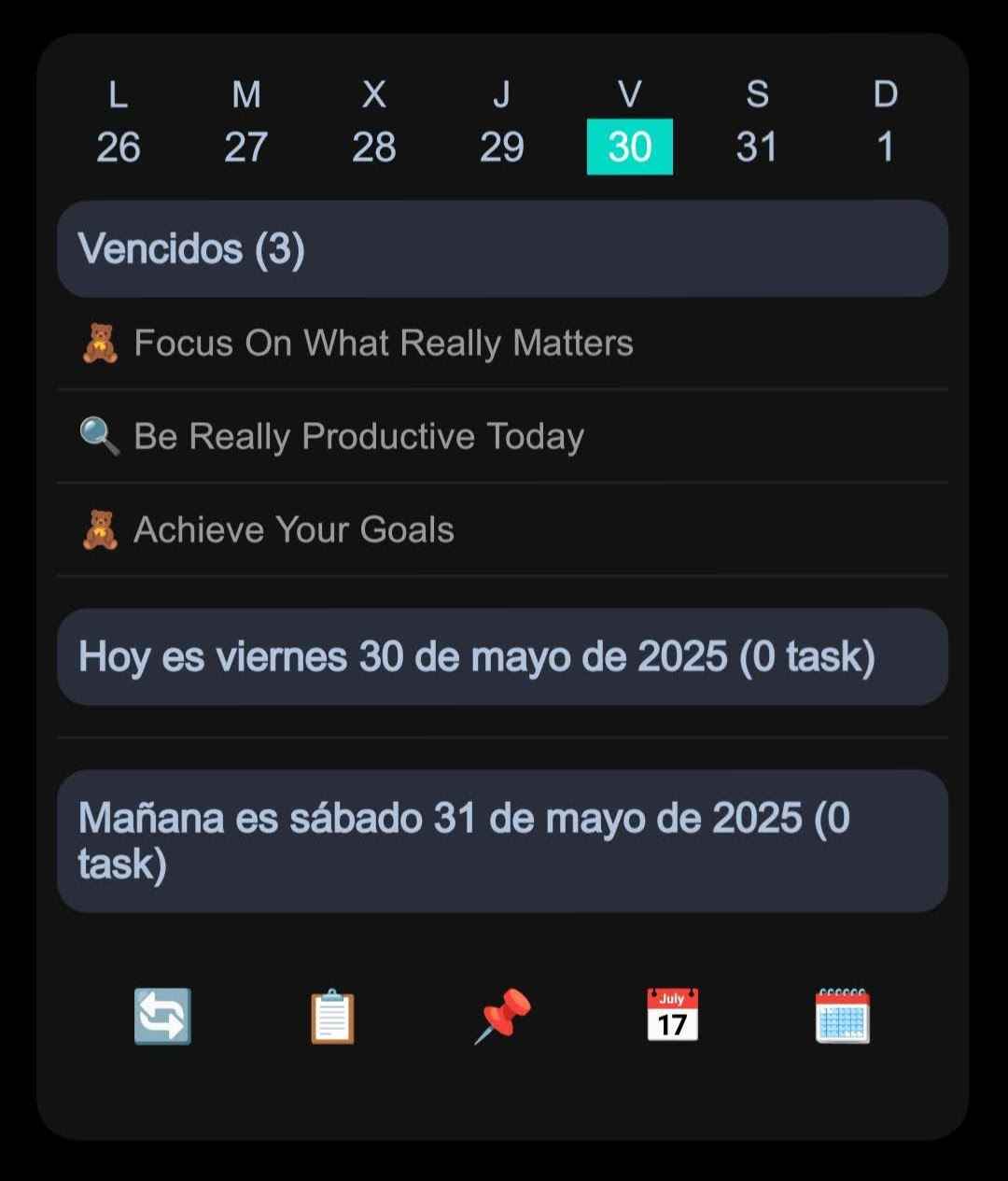
Planning your day from Notion can become messy when your tasks, project notes, custom views, and calendar events live in different places. You may know what is important, but it takes time to collect the right context before asking ChatGPT or another AI assistant for help.
NotiZen now adds a new AI planning export for Android widgets. You can export selected Custom Views and cached calendar events as a structured JSON file, then share that file with ChatGPT, MCP tools, or another AI workflow.
The goal is simple: give your AI assistant the same planning context you already see in your widget, without manually copying every task one by one.
The problem: AI planning needs structured context
ChatGPT and other AI tools are much more useful when they can see the actual structure of your work: task titles, visible properties, dates, selected views, and calendar events.
Without that structure, you end up explaining your system manually. You paste a few task names, describe a database, forget one calendar event, and the plan becomes incomplete.
For people who use Notion as a daily planner, weekly review system, reading list, project dashboard, or personal task manager, that missing context matters.
What NotiZen exports
The new export creates a JSON file from the widget configuration you choose.
- Selected Custom Views from your Android widget.
- Visible cached Notion items from those views.
- Dynamic Notion properties without hardcoding personal fields.
- Optional hidden items, when available locally.
- Cached Google Calendar events from Upcoming Events.
- Optional Notion page URLs.
- Optional Notion object IDs for MCP-compatible workflows.
Calendar events are exported at widget level, not inside a Custom View. That keeps Notion data and calendar data clear instead of mixing two different sources.
Why object IDs matter for MCP workflows
The most powerful part of the export is not only the text. It is the identity layer.
When enabled, NotiZen can include object IDs such as Notion page IDs, database IDs, property IDs, source view IDs, and Google Calendar event IDs. These IDs help compatible MCP tools or agent workflows identify the exact objects involved in a planning session.
That does not mean NotiZen automatically changes your workspace from the export. The export is still explicit and user-controlled. But it gives AI tools a cleaner map of what each item is, where it came from, and how it relates to your widget.
A practical workflow
Imagine you have a NotiZen widget with three Custom Views: Today, This Week, and Project Alpha. You also show upcoming calendar events from Google Calendar.
- Open the widget settings.
- Choose Export for AI planning.
- Select Today, This Week, or any other Custom Views you want.
- Choose whether to include cached Google Calendar events.
- Keep Notion object IDs enabled if you plan to use MCP-compatible tools.
- Export the JSON file and share it with ChatGPT or your preferred AI assistant.
Then you can ask something like:
Here is my NotiZen planning export. Help me organize today, identify what should move to tomorrow, and suggest a realistic weekly plan.
Because the export keeps the structure, the assistant can reason over views, properties, dates, and calendar events instead of reading an unstructured wall of text.
Useful examples
- Plan today from your Notion tasks and calendar events.
- Review your weekly agenda before Monday starts.
- Ask an AI assistant which tasks look overdue or overloaded.
- Prepare a focused work plan from multiple Custom Views.
- Use MCP-compatible tools to reason about exact Notion pages and properties.
- Share a clean export without giving an AI assistant direct app access.
Privacy and control
The export is created locally from the data already available to the widget. It does not refresh Notion or Google Calendar during export, and it does not mutate your Notion workspace or Google Calendar.
Before sharing, you can choose whether to include Notion object IDs, Notion page URLs, hidden items, and cached Google Calendar events.
If you only want a simpler planning file, you can turn off IDs or URLs. If you are working with MCP-compatible tools and need exact object references, you can keep IDs enabled.
Who this is for
This is especially useful if you use Notion as a serious planning system instead of just a notes app.
- Students planning study blocks.
- Solo founders organizing product tasks.
- Freelancers managing client work.
- People using Notion for GTD, PARA, weekly reviews, or project dashboards.
- Anyone who wants ChatGPT to help plan from real structured context instead of vague notes.
Try it in NotiZen Widget
If you already use NotiZen Widget, open your widget settings and look for Export for AI planning. You can also export a single Custom View from that view's settings.
If you are new to NotiZen, start with the feature overview or the getting started guide. For related planning setups, read how to organize multiple Notion views on your Android home screen and how to manage multiple Notion workspaces with NotiZen Widget.
You can also install NotiZen Widget from Google Play.
Turn your Notion workspace into an Android planning layer you can actually use from your home screen - and now, share with your AI planning workflow when needed.
FAQ
What is the NotiZen AI planning export?
It is a JSON export from a NotiZen Android widget. It can include selected Custom Views, cached Notion items, cached Google Calendar events, and optional object IDs for MCP-compatible workflows.
Does the export change my Notion workspace?
No. The export is read-only. It does not mutate Notion pages, databases, properties, or Google Calendar events.
Does NotiZen fetch fresh data during export?
No. The export uses data already available locally to the widget, including cached Custom View items and cached Upcoming Events when available.
Why include Notion object IDs?
Object IDs help MCP-compatible tools or agent workflows identify the exact Notion pages, databases, and properties involved in a planning session. You can turn this off before exporting if you prefer a simpler file.
Can I export only one Custom View?
Yes. You can export one Custom View, several views, or all Custom Views from a widget.