How to organize multiple Notion views on your Android home screen
Learn how to organize multiple Notion views on your Android home screen with NotiZen Widget, including Today, Overdue, Work, Personal and project-focused Custom Views.
Posted by
 Gustav Caves
Related reading
Why connecting Notion can feel confusing — and how NotiZen makes setup easier
Connecting Notion can be confusing when databases do not appear after setup. Learn how Notion page permissions work and how NotiZen Widget makes the setup flow clearer.
Why your Notion databases may not appear in an Android widget
Learn why Notion databases may not appear after connecting Notion, how page permissions work, and how NotiZen Widget now makes setup clearer.
How to manage multiple Notion workspaces on your Android home screen
Learn how NotiZen helps Android users manage multiple Notion workspaces, update shared pages, choose the right database for widgets, and remove local workspace connections safely.
Introduction
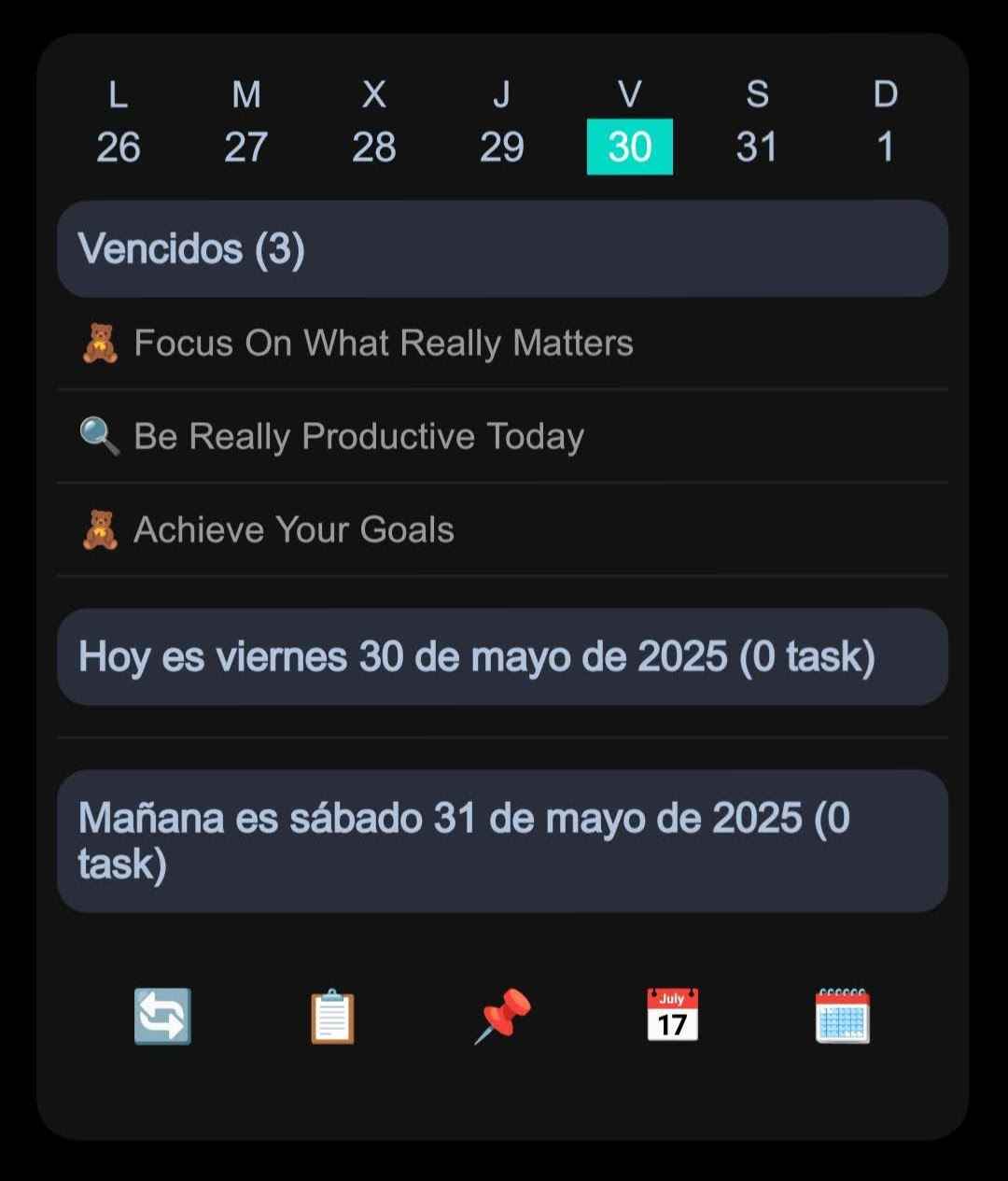
Notion becomes more useful on Android when the right information is visible before you open the full app. If your workspace has several task or project views, the home screen should not show everything at once. It should show the views that help you decide what to do next.
The problem is usually not a lack of information. It is that Today, Overdue, Work, Personal, and Projects can all compete for attention. A good Notion home screen widget gives each view a clear job, then puts the most useful one first.
Why multiple Notion views can work better than one big list
One long list can be useful inside Notion, but it often feels noisy on a phone home screen. Today's tasks sit next to overdue items, work projects mix with personal errands, and low-priority ideas take the same visual space as things that need attention now.
Multiple Notion views help separate contexts. Instead of asking one widget to explain your whole workspace, you can create focused Custom Views for the decisions you make during the day. The goal is not to replace Notion. The goal is to reduce friction before you decide whether opening Notion is worth it.
NotiZen Widget works well here because it acts as a quick-access layer over your Android home screen. For a broader comparison between native Notion widgets and database-focused widgets, read Does Notion Have an Android Widget?.
Example view setup
You do not need every view below. Treat these as practical examples for a Notion task widget Android setup, then keep only the views that earn space on your home screen.
- Today - tasks or pages that need attention now.
- Overdue - items that were missed and should not disappear.
- Work - professional tasks, client work, or work projects.
- Personal - errands, personal reminders, habits, or family tasks.
- Projects - active project pages or next actions.
- Waiting - things blocked by someone else.
- Someday - ideas that should stay visible but are not urgent.
A simple ordering strategy
The first view should answer the question you ask most often. For many people, that means putting Today first, because it shows what deserves attention now. A simple starting order looks like this:
- Today
- Overdue
- Work
- Personal
- Projects
- Waiting
- Someday
This is not a universal rule. If missed deadlines are your biggest problem, Overdue may deserve the first position. If your phone is mostly a work dashboard during office hours, Work or Projects may belong above Personal. The right order is the one that makes the next decision obvious.
How manual ordering helps
Manual ordering is useful because the first view in a widget often becomes the one you actually check. If Today matters most in the morning, place it first. If missed tasks are your biggest problem, put Overdue above everything else.
NotiZen Widget lets you organize Custom Views inside a widget and reorder them manually. You can drag a view card to change its position, while the dotted handle makes reorderable views easy to recognize. When you release the card, the order is saved for that widget setup.
This matters when one widget contains several workflows. A compact widget can hold Today, Work, and Waiting, but the order tells your home screen which view deserves attention first. The order is local to NotiZen Widget; it does not rearrange your Notion database or change your Notion workspace structure.
One widget vs multiple widgets
Use one widget with multiple views when the views belong to the same workflow. A daily planning widget might include Today, Overdue, Waiting, and Someday because all four views help you review the same task system. Keeping them together creates a compact panel where you can move between nearby contexts.
Use multiple widgets when the contexts should stay separate. Work and personal planning may create noise when they share the same space. You may also want different widget sizes, such as a larger project dashboard on one screen and a smaller personal reminder widget near your calendar. If your Android launcher has multiple home screens, separate dashboards can make the setup easier to scan.
Basic includes 1 active widget, up to 3 data sources, 3 saved Custom Views and 5 successful widget actions per day. Pro removes these limits and adds view duplication, compact mode, advanced metrics and advanced visibility controls.
Suggested workflows
These workflows are starting points. Adjust the names and order to match your Notion database, your launcher, and the moments when you actually check your phone.
- Daily planning: Today, Overdue, Waiting, Someday.
- Work dashboard: Work, Projects, Waiting, Overdue.
- Personal life: Personal, Errands, Family, Habits.
If you are new to NotiZen Widget Custom Views, start with one workflow. Once that setup feels useful, add a second view or a separate widget only when it solves a real planning problem.
Common mistakes
- Creating too many views before one view is genuinely useful.
- Putting Someday, Ideas, or other low-priority views first.
- Mixing work and personal views when that creates noise instead of clarity.
- Showing too many properties, which makes each row harder to scan.
- Treating the widget as a full Notion replacement instead of a focused shortcut layer.
A good Notion widget Android setup should feel smaller than your full workspace. If the widget starts to look like a crowded database, remove views or properties until it helps you act faster.
Related guides
FAQ
Can I show multiple Notion views on Android?
Yes. With NotiZen Widget, you can create Custom Views from your Notion database and use them as focused views on your Android home screen.
What views should I put first?
Start with the views that help you decide what to do next, usually Today, Overdue, Work, or a current project view.
Does changing the order affect my Notion database?
No. Manual ordering in NotiZen Widget is local to the widget setup. It helps organize how views appear on Android without changing the structure of your Notion database.
Should I use one widget or multiple widgets?
Use one widget when the views belong to the same workflow. Basic includes 1 active widget and up to 3 saved Custom Views, with usage limits. Use Pro to add widgets when work, personal planning, or projects need separate spaces.
Can I edit Notion items from the widget?
Basic includes 5 successful widget actions per day for supported property edits; Pro removes this limit. Actions inside the app are unlimited. For full editing and complex database changes, use Notion.
Conclusion
Multiple Notion views on an Android home screen work best when each view has a job and the order matches your real priorities. Start with the view that helps you decide what to do next, keep secondary views nearby, and split workflows into additional Pro widgets when the contexts no longer belong together.
Try NotiZen Widget on Google Play if you want your Notion views closer to your Android home screen.