How to organize Notion views and collections on Android
Organize work, projects and personal planning with Notion views and NotiZen collections on Android. Use them inside the app and add optional widgets.
Posted by
 Gustav Caves
Related reading
Connecting Notion can be confusing when databases do not appear after setup. Learn how Notion page permissions work and how NotiZen Widget makes the setup flow clearer.
Learn why Notion databases may not appear after connecting Notion, how page permissions work, and how NotiZen Widget now makes setup clearer.
Learn how NotiZen helps Android users manage multiple Notion workspaces, update shared pages, choose the right database for widgets, and remove local workspace connections safely.
Start with a context, then choose a view
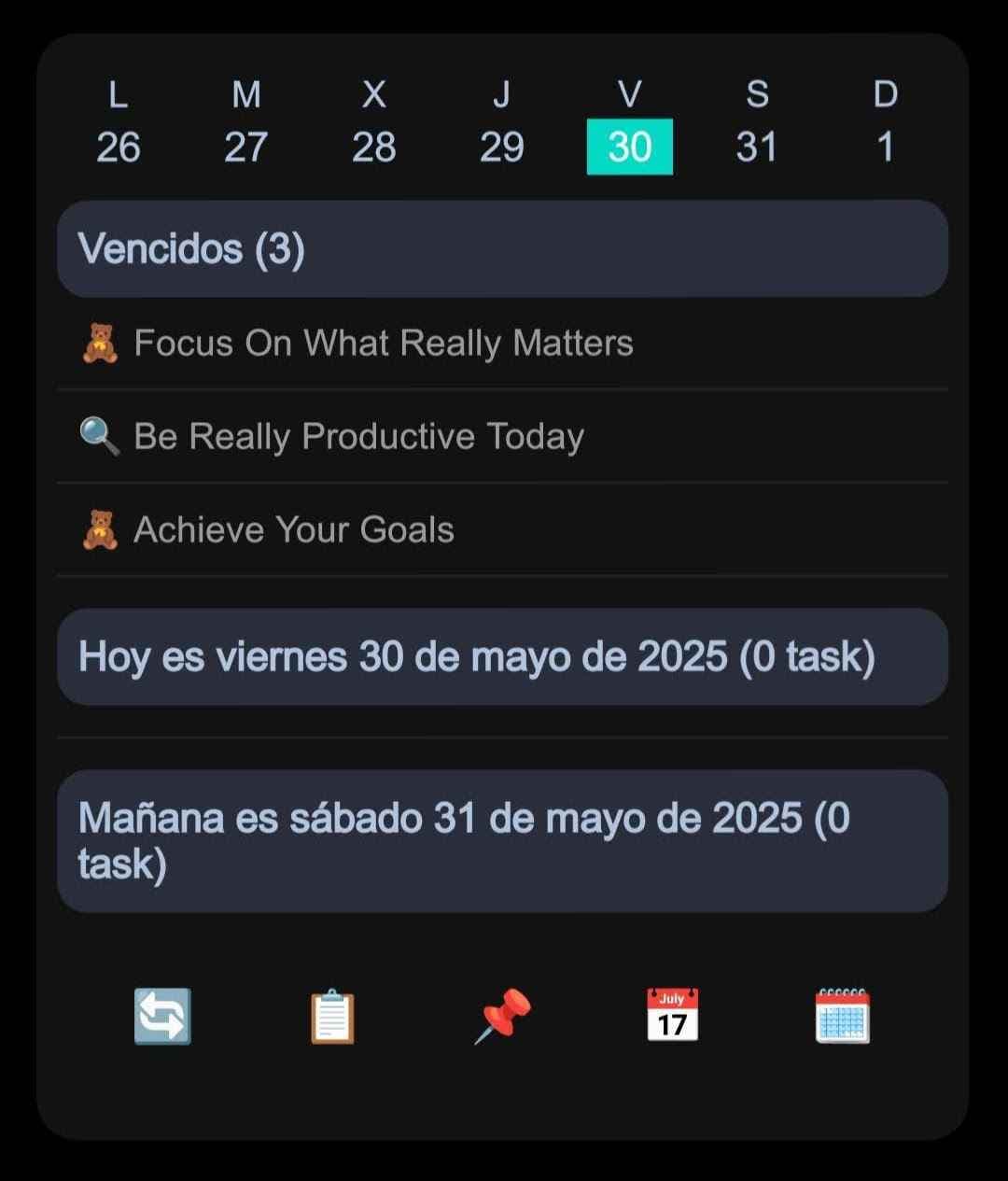
A long Notion task list can mix client work, personal errands and ideas for later. A useful mobile setup lets you choose the context before scanning every item. In NotiZen, a view determines what to show and a collection groups related saved views.
For example, a Work collection might contain Active projects, Clients and This week. A Personal collection might contain Errands and Home projects. These are example names you create, rather than built-in sections. Your original data stays in Notion.
You can use collections and saved views inside the Android app. Widgets are optional: add one when keeping a particular view on your home screen helps you during the day.
Build one useful collection first
- Connect Notion from NotiZen and share the database you need or a page that contains it. A successful connection alone does not grant access to every database.
- Create a collection for one context, such as Work.
- Create a Custom View or import a compatible Notion view and choose the source you want to consult.
- Choose filters, sorting and visible properties. Save the view in the collection.
- Select the view inside NotiZen and check whether it shows the items you actually need. Add a second view when it answers a different question.
Use focused views instead of duplicating your data
A This week view can focus on dates, while a Waiting view can focus on a compatible status. A project view can use another filter. Adapt the examples to the properties available in your database; names alone do not apply filters.
Collections organize your NotiZen configuration without moving pages in Notion. Imported views may have unsupported settings or visual differences, so review the compatibility notices rather than assuming a complete copy of the Notion layout.
For daily tasks, configure a Notion task source and its compatible date and completion fields, then use Inbox, Today and Upcoming. These task sections complement the saved views you organize in collections.
Add a widget when it saves you a visit to the app
If you repeatedly consult the same view, add a NotiZen widget using a compatible source or view. Keep the visible properties focused and choose a size that works with your Android launcher.
Direct widget actions depend on the property and configuration. Actions inside the app are unlimited in Basic and Pro. Full page content editing and deeper workspace changes remain in Notion.
Start with Basic and expand when your system needs it
Basic is free with no time limit and gives you the core NotiZen workflow: Inbox, Today, Upcoming, unlimited actions inside the app, up to 3 Notion data sources, 3 collections, 3 saved Custom Views, 1 active widget, 5 successful widget actions per day and up to 100 items per view.
Pro is for workflows that grow. It removes the Basic limits on widgets, data sources, collections, saved Custom Views and widget actions, and adds view duplication, supported linked Notion view settings, compact mode, advanced metrics, advanced visibility controls, widget-title hiding and up to 300 items per view.
Review your setup after a few days
Keep the views that help you make a decision. If two views show the same work, refine their filters or remove one. If a collection mixes unrelated contexts, consider separating them within your plan's limits.
The goal is a useful daily system: a task source for action, collections for context and an optional widget for the information you want to keep visible.
Continue with these guides
FAQ
What is the difference between a view and a collection?
A view determines which items and properties to show. A collection groups related saved views in NotiZen, such as the views you use for work or personal planning.
Do I need a widget to use collections?
No. You can use collections and saved views inside the Android app. Widgets are an optional way to keep a compatible view on the home screen.
Does a collection move pages in Notion?
No. Collections organize your NotiZen configuration. Your original pages and databases stay in Notion.
What can I start with for free?
Basic is free with no time limit and gives you the core NotiZen workflow: Inbox, Today, Upcoming, unlimited actions inside the app, up to 3 Notion data sources, 3 collections, 3 saved Custom Views, 1 active widget, 5 successful widget actions per day and up to 100 items per view.
Does Pro unlock every Notion property editor?
No. Basic and Pro share the available property editors. Pro adds capacity and advanced controls; pending or read-only properties do not become editable with a subscription.